
Apple Passwords resource
How to Export and Import Apple Passwords
Apple Passwords can export website and app passwords to a CSV file on Mac. Review the file before you combine it with browser exports or import it into Passwords.
The decision that matters
Choose the right export before you start
Apple provides separate export and import commands in the Passwords app. A careful workflow must preserve the CSV locally, resolve duplicate site records, and review skipped entries after import.
Current workflow
How to complete the current provider export
-
Open the Passwords app on your Mac.
Open the first-party step -
Choose File > Export All Passwords to File.
Open the first-party step -
Confirm the export, choose a local folder, and click Save.
Open the first-party step -
Keep the CSV local. Review duplicate site and username rows and keep one verified password before you import. Apple says the export is not encrypted.
Open the first-party step -
Open the Passwords app and choose File > Import Passwords from File.
Open the first-party step -
Click Choose File and select the final CSV.
Open the first-party step -
Click Import and wait for the result.
Open the first-party step -
Review any passwords that could not be imported. Existing entries are not replaced.
Open the first-party step -
Delete the temporary CSV after you finish the import.
Open the first-party step
Reviewed visual references
Match the current first-party screens
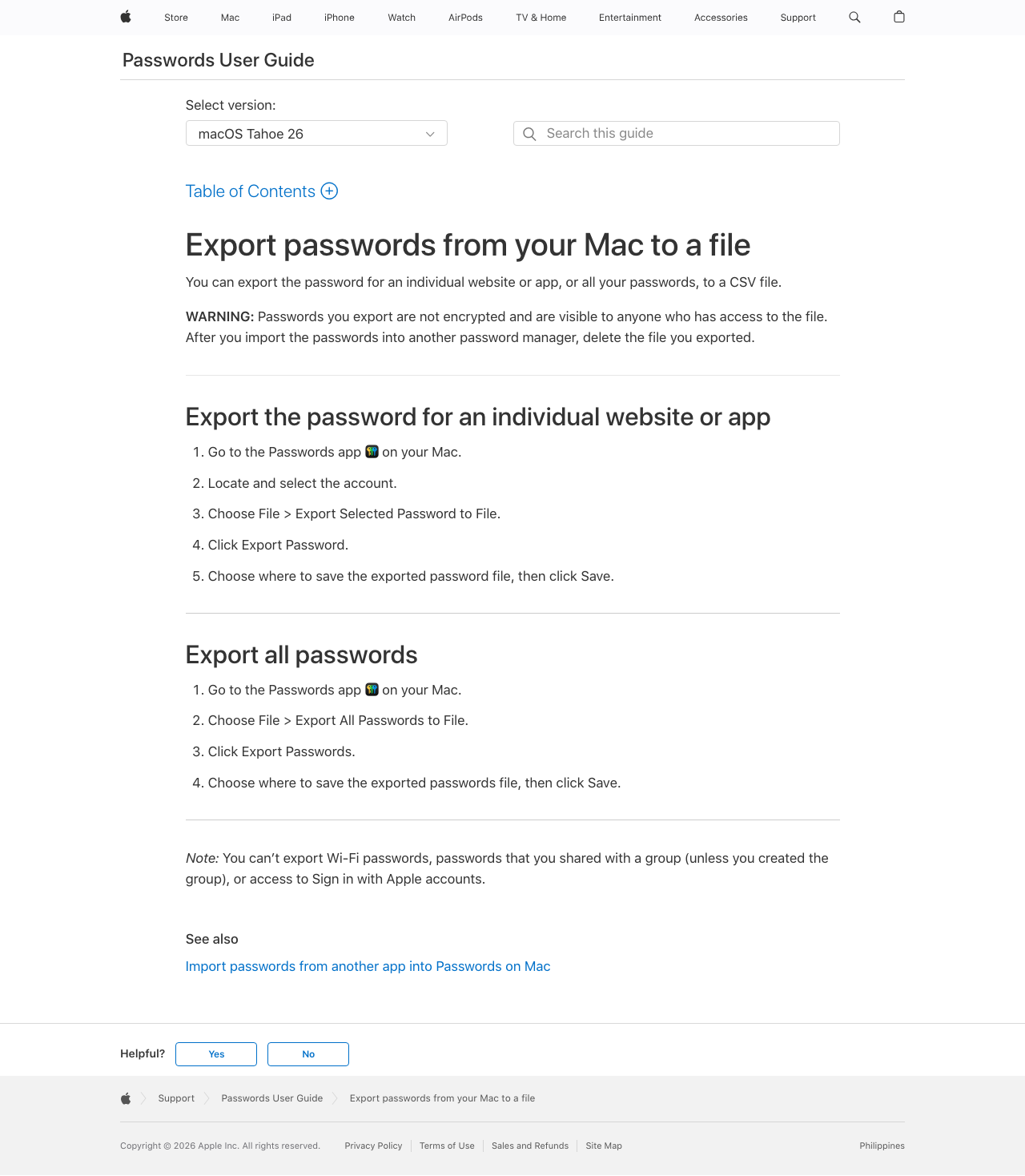
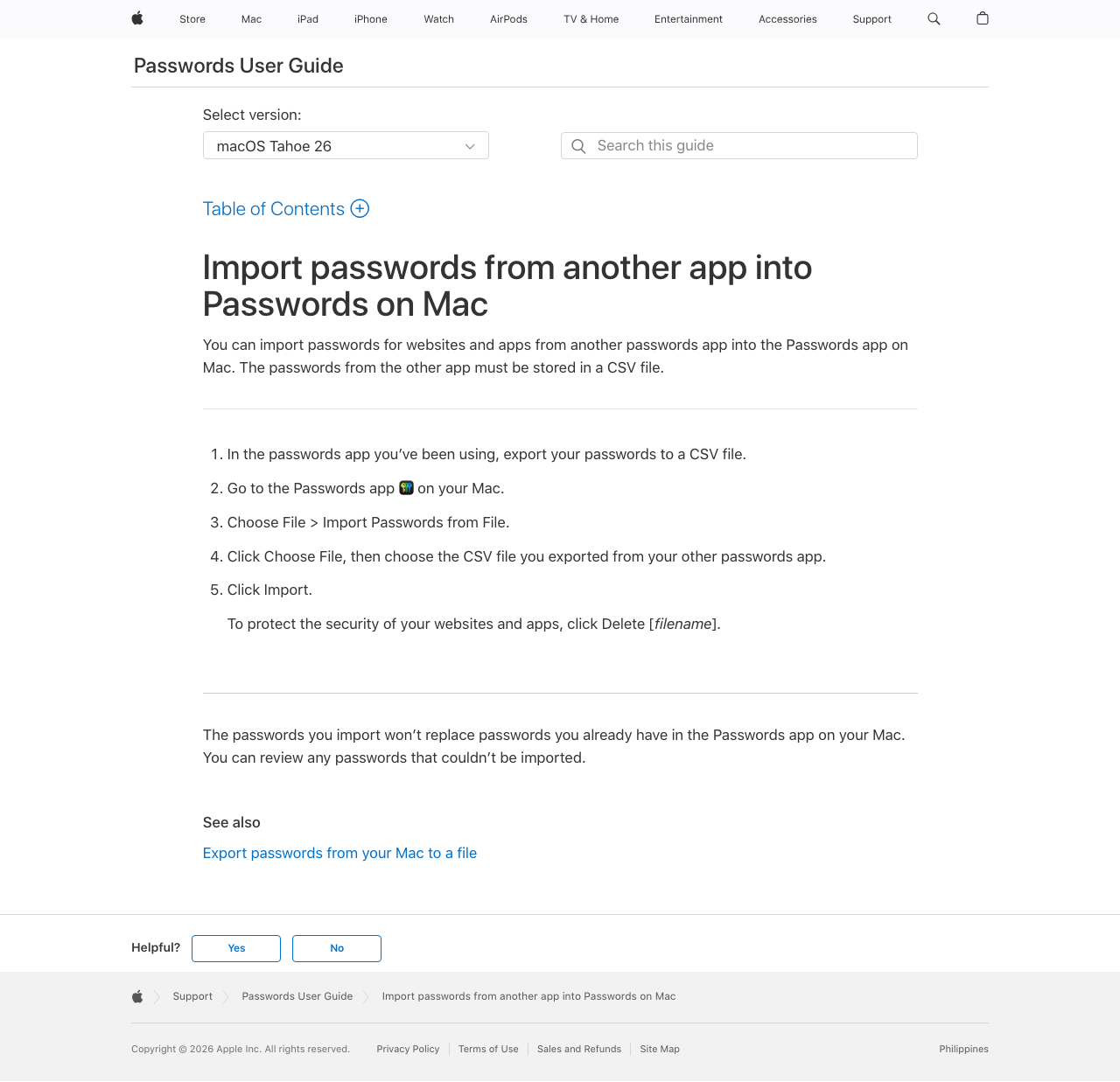
What this workflow covers
Useful output and next steps
- Exporting all website and app passwords from Passwords on Mac
- Reviewing a merged CSV with name, url, username, password, and note fields
- Identifying duplicate site and username pairs and keeping one reviewed password per pair
- Importing the final CSV and checking entries that Apple could not import
Objections and limits
What this resource does not promise
- Apple warns that exported CSV files are not encrypted.
- Apple does not replace passwords that already exist in Passwords during import.
- Wi-Fi passwords, shared group passwords, and access to Sign in with Apple accounts are not exported by this workflow.
- Apple item modification dates do not prove when a password changed.
- An app-to-app handoff to a custom receiver is separate from this CSV workflow.
Repository evidence
Password tool entry point
/tools/password-merger/This exact route or input shape is maintained in frontend/tools/password-merger/index.html.
First-party sources
Verify the provider workflow
Use the CSV workflow when an app-to-app handoff does not complete. This guide does not upload your password file.
Questions before you export
Frequently asked questions
How do I export all passwords from Apple Passwords?
Open Passwords on Mac, choose File > Export All Passwords to File, confirm the export, and save the CSV in a local folder.
How do I import a CSV into Apple Passwords?
Open Passwords, choose File > Import Passwords from File, click Choose File, select the final CSV, and click Import.
Does Apple Passwords replace an existing password during import?
No. Apple says imported passwords do not replace existing entries. Review the import result and update any selected winners in Passwords.
How should I resolve duplicate passwords before import?
Group rows by site and username, compare the candidate records, verify the selected password on the site, and keep one reviewed row before import.
Can I use this guide for a custom app receiver?
This guide covers the local CSV path. Use it when an app-to-app export does not deliver records to a custom receiver.
Continue with the right provider